 小煜
5d9e09e9c3
小煜
5d9e09e9c3
- Add core addon files (__init__.py, KKPanel.py, preferences.py, common.py)
- Add import pipeline with armature, mesh, and material modification modules
- Add export pipeline with material baking and FBX preparation utilities
- Add material combiner tool for texture atlas generation and optimization
- Add extras utilities for animation, rigging, and asset management
- Add bone orientation data from better_fbx for accurate skeletal structure
- Add comprehensive documentation and wiki with multi-language support (EN, JP, ZH)
- Add animation library retargeting lists for ARP and Rokoko motion capture
- Add Rigify integration scripts for advanced rigging workflows
- Add shader file (KK Shader V8.0.blend) for material rendering
- Add manifest and license files for addon distribution
- Add changelog documenting version history and improvements
- Initialize complete Blender addon project for Koikatsu character import/export
52 lines
3.9 KiB
Markdown
52 lines
3.9 KiB
Markdown
## 杂项
|
||
|
||
## 从 Koikatsu 控制台获取信息
|
||
可以通过打开 Koikatsu 安装文件夹中的 InitSetting.exe 并勾选 Console 框来启用 Bepinex 调试控制台
|
||
|
||
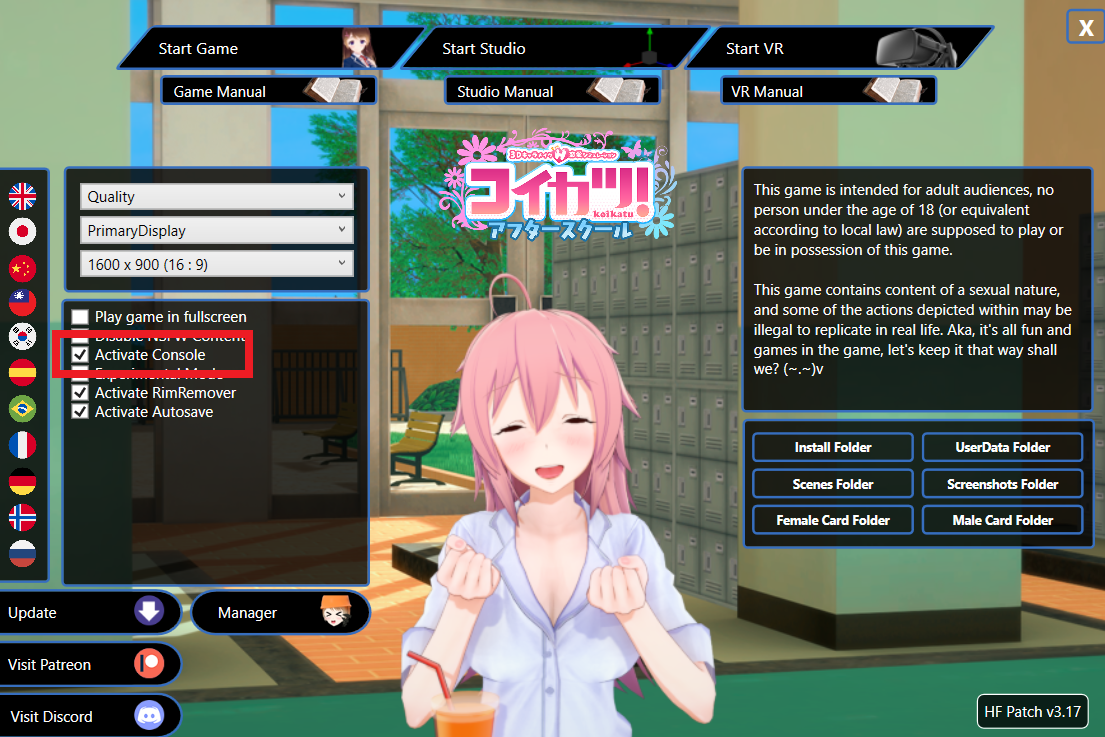
|
||
|
||
点击 KKBP 导出按钮后,导出器将开始在控制台窗口中记录其进度。这些将以 ```[Info : Console]``` 开头
|
||
|
||
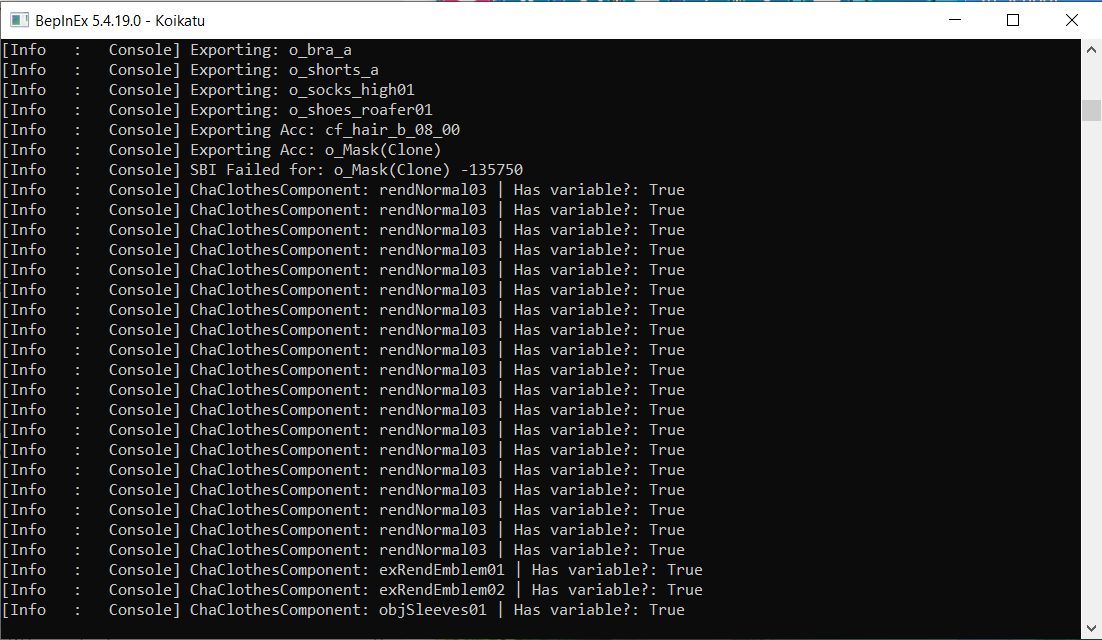
|
||
|
||
## 从 Blender 控制台获取信息
|
||
在 Windows 上,当你导入模型或烘焙材质时,Blender 控制台会自动打开。如果发生错误,控制台将保持打开状态,以便用户可以阅读错误消息。当模型成功导入且没有错误时,控制台将自动关闭。此日志也保存到 Blender 顶部的脚本选项卡中。
|
||
|
||
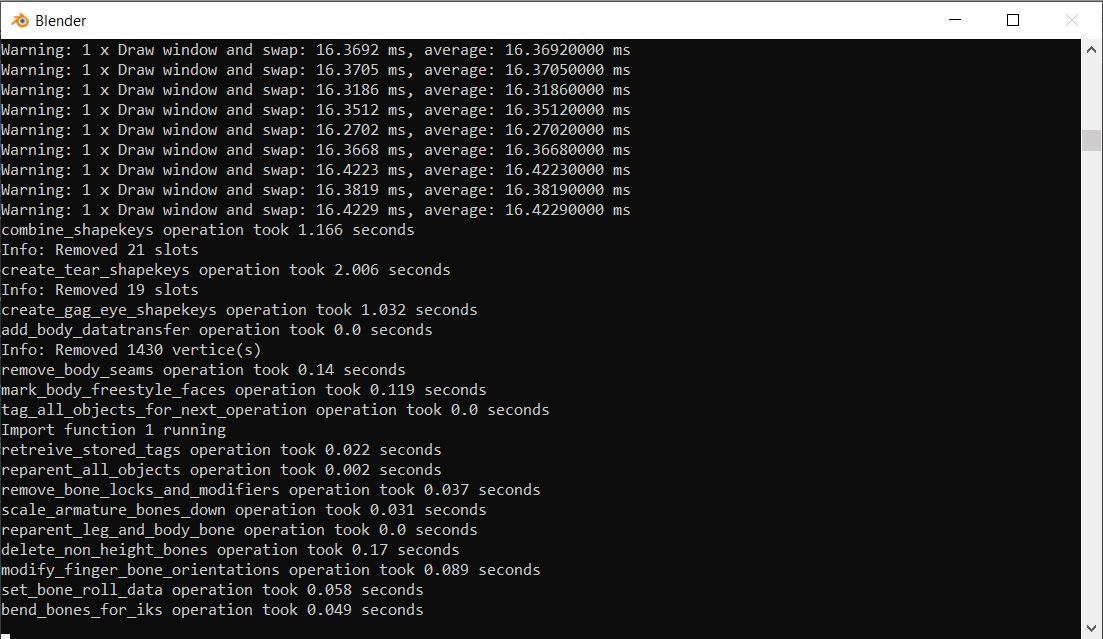
|
||
|
||
## 导入多个角色
|
||
KKBP 导入器无法将多个角色导入到同一文件中。你必须分别导入角色,然后使用"文件">"追加"将它们合并到一个文件中,然后从第二个角色的 .blend 文件中追加角色集合。
|
||
|
||
## 完成材质
|
||
使用导出面板中的"完成材质"按钮将把所有 KKBP 材质转换为 PNG 文件。这是通过应用几何节点修改器来完成的,该修改器将每个网格展平为平面,然后拍摄平面的照片。整个网格被折叠,因此如果网格的透明部分存在,则会留下一些非常小的间隙。因此,在折叠网格下方放置第二个填充平面以填充这些间隙。
|
||
|
||
由于网格被折叠,有时会发生 Z-fighting 并导致看起来损坏的图像。可以通过在 KKBP 面板中启用"使用旧烘焙器"复选框来避免这种情况。使用此选项将删除折叠网格,仅使用填充平面来烘焙图像。填充平面不包含额外的 UV 贴图,因此依赖多个 UV 贴图的材质(如头发)将无法使用旧烘焙器正确烘焙(例如头发光泽不会显示)。大多数其他材质将使用旧烘焙器正确烘焙。
|
||
|
||
只有可见对象才会被完成,因此如果你有要烘焙的备用服装件或其他服装,请确保在点击完成按钮之前它们在大纲视图中可见。
|
||
|
||
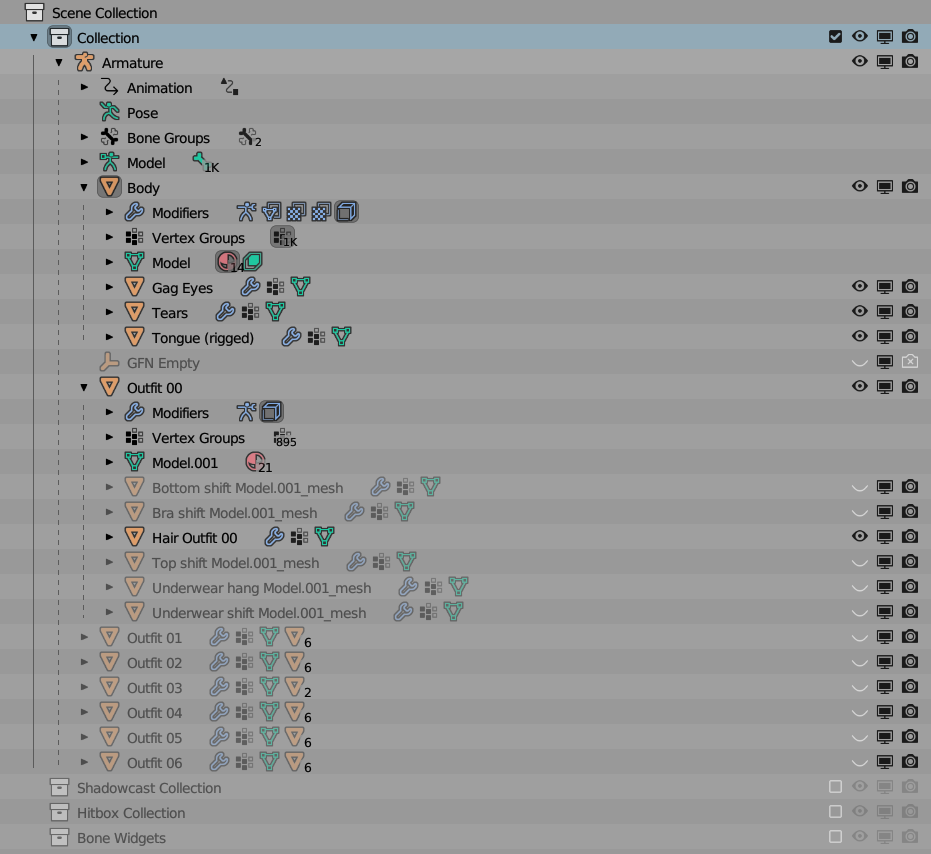
|
||
|
||
## 使用 Freestyle 轮廓
|
||
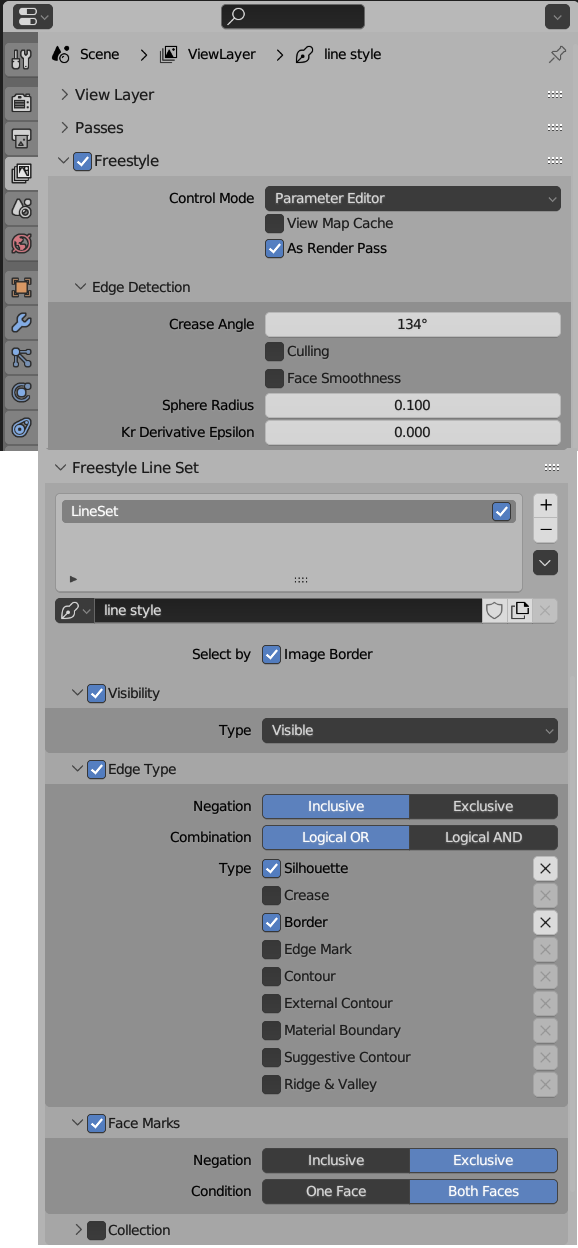
将你不想使用 Freestyle 的任何面标记为 Freestyle 面,在 Blender 中启用 Freestyle,并禁用身体对象上的轮廓修改器。如果你不想实验,请尝试使用这些 Freestyle 设置
|
||
|
||
|
||
|
||
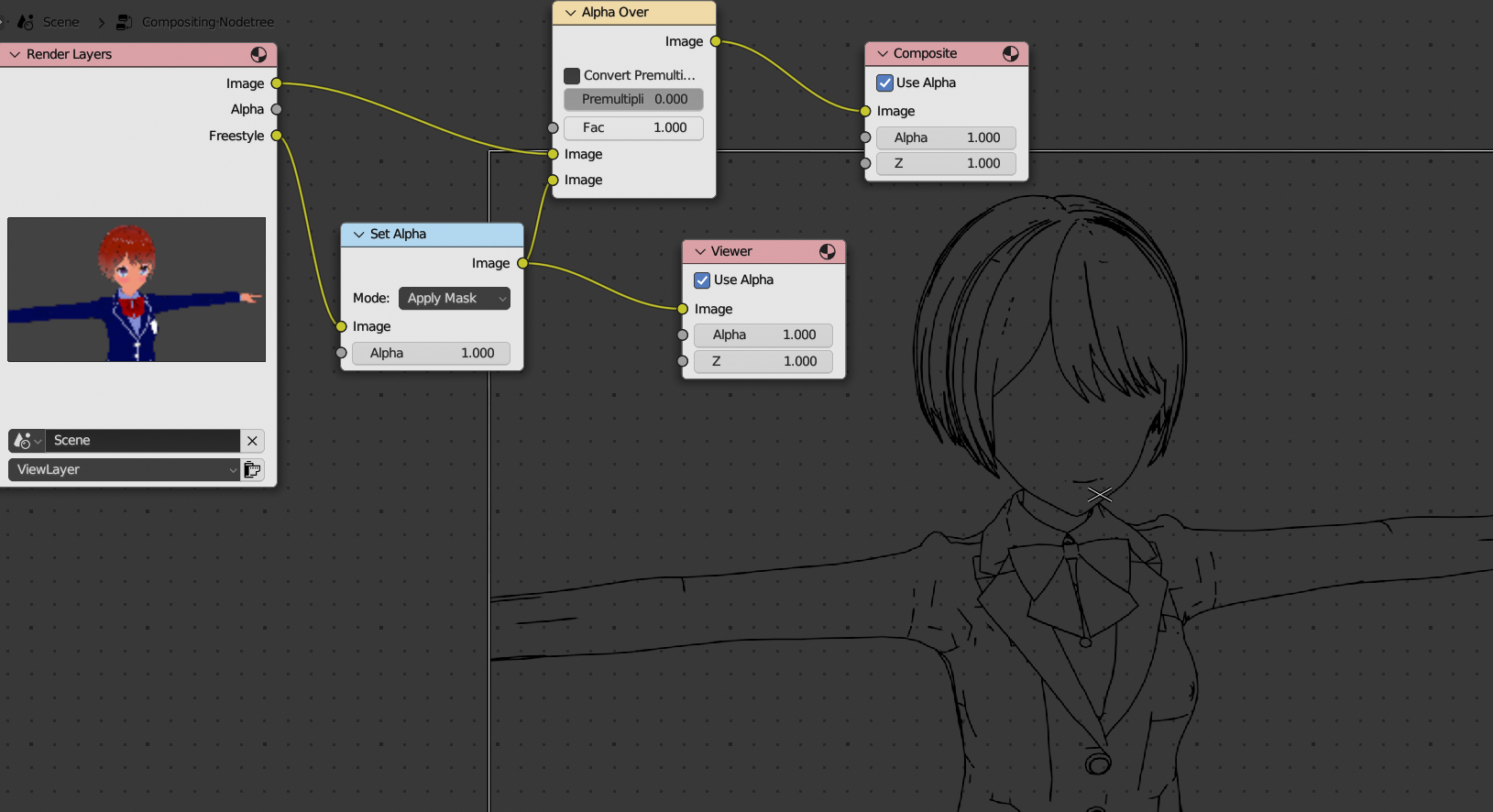
如果你不想实验,请尝试这些合成器设置
|
||
|
||
|
||
|
||
|
||
## Unity 中的骨架
|
||
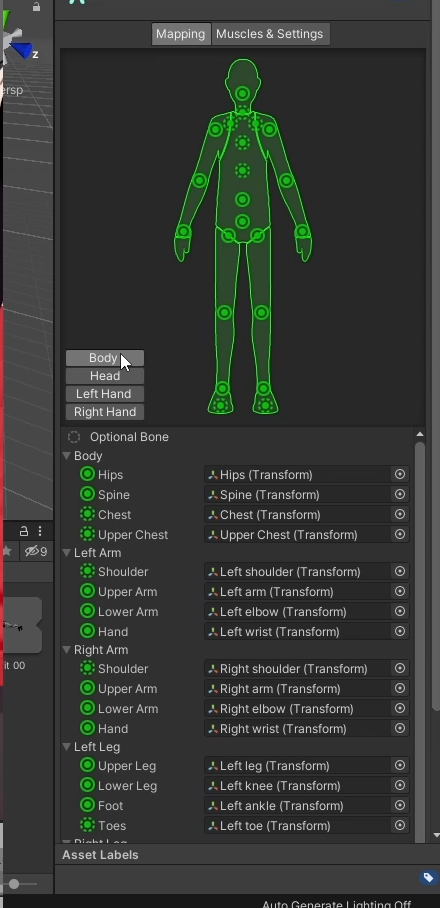
导出面板中的"非常简单(慢)"、"简单"和"Unity - VRM / VRChat 兼容"选项将对骨架进行更改,使 Unity 能够自动识别 Humanoid 骨架所需的骨骼。
|
||
|
||
|
||
|
||
## Unity 中的弹簧骨骼
|
||
将 Koikatsu 模型导入 Unity 后,可以从 [UniVRM Unity 包](https://github.com/vrm-c/UniVRM/releases)添加弹簧骨骼以获得实时头发、裙子和配饰运动。
|
||
|
||
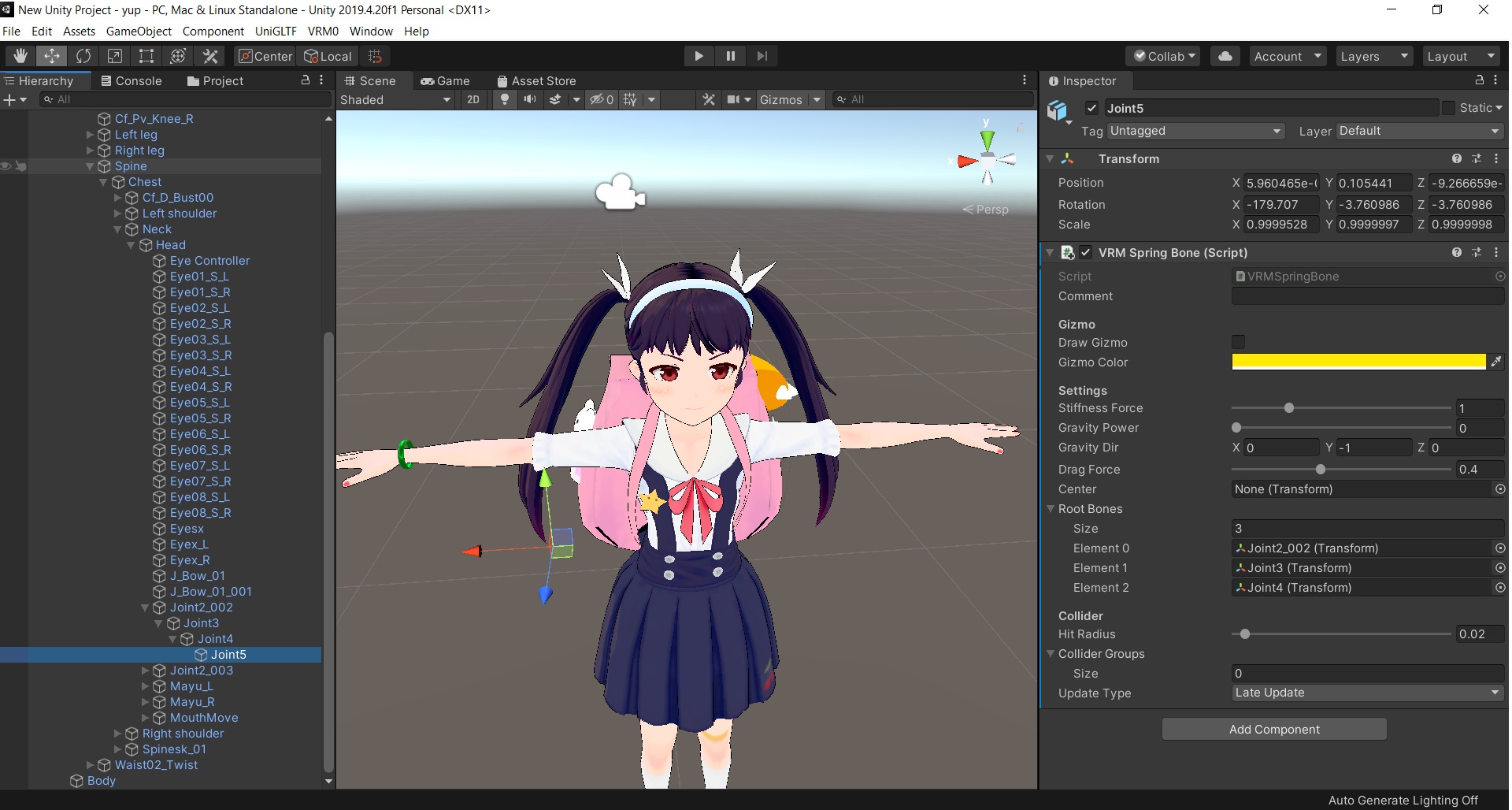
在下面的示例中,右侧双马尾被赋予弹簧骨骼。弹簧骨骼脚本被添加到链末端的双马尾骨骼。双马尾链在链中有四个骨骼:Joint2_002 > Joint3 > Joint4 > Joint5,因此弹簧骨骼脚本被添加到 Joint5。然后将链上的根骨骼添加到右侧的"根骨骼元素"部分。还有三个剩余的骨骼,因此大小设置为 3。
|
||
|
||
|
||
|
||
[返回 wiki 主页](https://github.com/FlailingFog/KK-Blender-Porter-Pack/blob/master/wiki/Wiki%20top.md)
|