 小煜
5d9e09e9c3
小煜
5d9e09e9c3
- Add core addon files (__init__.py, KKPanel.py, preferences.py, common.py)
- Add import pipeline with armature, mesh, and material modification modules
- Add export pipeline with material baking and FBX preparation utilities
- Add material combiner tool for texture atlas generation and optimization
- Add extras utilities for animation, rigging, and asset management
- Add bone orientation data from better_fbx for accurate skeletal structure
- Add comprehensive documentation and wiki with multi-language support (EN, JP, ZH)
- Add animation library retargeting lists for ARP and Rokoko motion capture
- Add Rigify integration scripts for advanced rigging workflows
- Add shader file (KK Shader V8.0.blend) for material rendering
- Add manifest and license files for addon distribution
- Add changelog documenting version history and improvements
- Initialize complete Blender addon project for Koikatsu character import/export
20 lines
1.8 KiB
Markdown
20 lines
1.8 KiB
Markdown
# 导入面板选项
|
||
|
||
**你可以将鼠标悬停在 KKBP 面板中的每个选项上以获取有关其功能的说明!**
|
||
|
||
本页仅涵盖面板内置说明中不太明显的内容。
|
||
|
||
## 默认面板设置
|
||
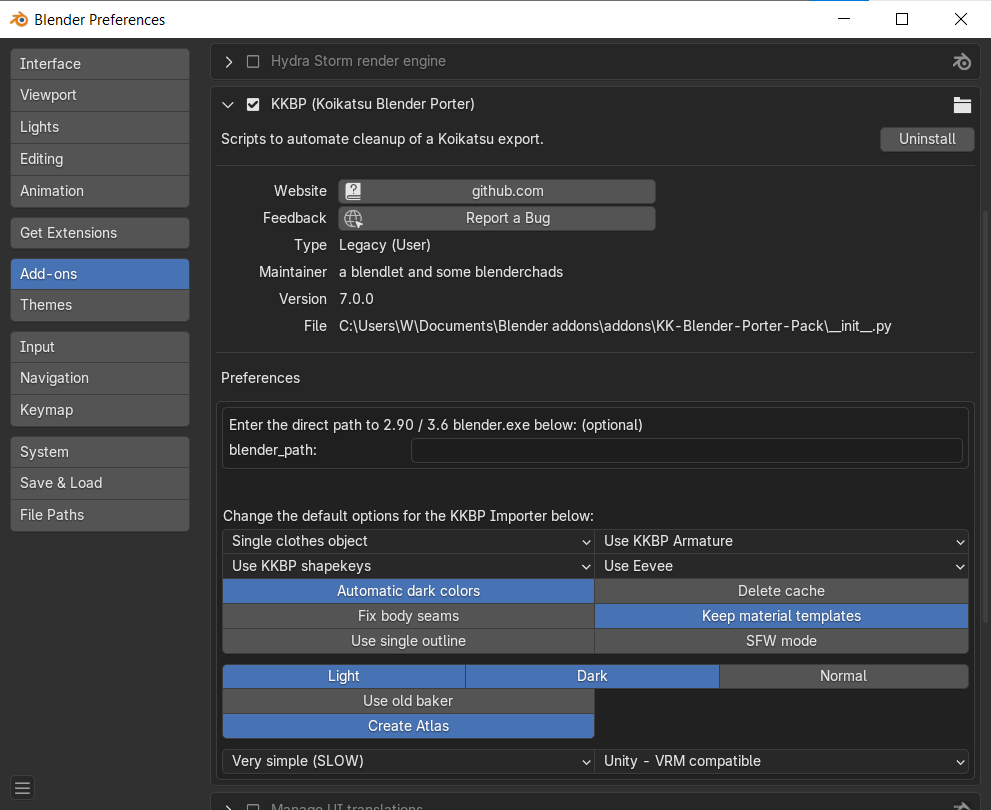
如果你在 Blender 的插件菜单中展开 KKBP,可以为面板设置默认设置(这样你就不必在每次重启 Blender 时都设置它们)。
|
||
|
||
|
||
## 额外功能面板
|
||
|
||
|
||
|
||
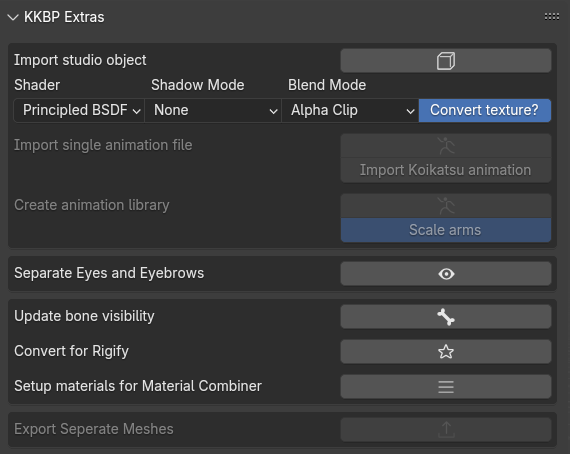
* 从游戏中导出工作室对象并使用面板中的按钮导入它们的说明[可以在这里找到](https://www.youtube.com/watch?v=PeryYTsAN6E)
|
||
* 从游戏中导出动画并使用面板中的按钮应用它们的说明可以在[这里找到(如果你喜欢文本)](https://github.com/FlailingFog/KK-Blender-Porter-Pack/blob/master/extras/animationlibrary/createanimationlibrary.py)或[这里(如果你喜欢视频)](https://www.youtube.com/watch?v=Ezsy6kwgBE0)
|
||
* 如果在导入期间选择了"使用 KKBP 骨架"选项,但你现在想切换到 Rigify 骨架,可以点击"转换为 Rigify"按钮将 KKBP 骨架永久转换为 Rigify 骨架。
|
||
* "分离眼睛和眉毛"按钮将眼睛和眉毛分离为单独的对象,然后将它们的形态键链接到 Body 对象的形态键。这可以与 Cryptomatte 合成器功能结合使用,使眼睛和眉毛透过头发显示。请参见[此视频以了解使用 Cryptomatte 选择对象的示例](https://www.youtube.com/watch?v=3UR4eXxMlsU)。
|
||
* "为材质合并器设置材质"按钮将为 [Shotariya 的材质合并器插件](https://github.com/Grim-es/material-combiner-addon)设置你的材质。在执行此操作之前,你必须先完成材质。
|